Ice Kingdom
by Morris McClung
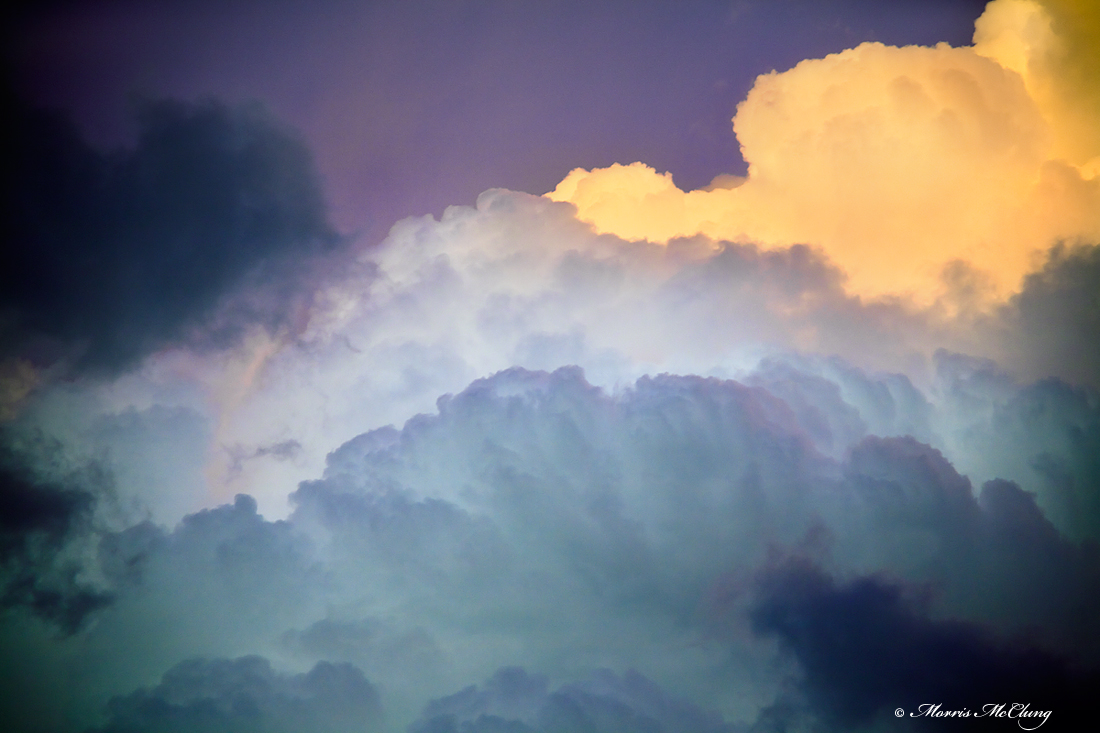
Another one from the storm last week. The dark clouds cleared enough to see the "building towers" of the storm with their ice blue color.
Comments and critiques welcome, and thanks for looking,
Morris
LARGE version added
TK's wizardry.

Comments
13 commentsAnother great cloud image. For me though, not sure what it is and it's probably just me, but I'm still having trouble with the colors here - this one being a little purple. And it's still the case, I wasn't there...
May I ask - did you do any luminosity painting through TK's burn/dodge layer? Just curious and I'll expand if needed.
Lon
Lon, the colors are close, I think, to what I was watching. The bright yellow/gold of the higher clouds, the ice blue of the towers beneath, and the yellow from the upper clouds mixing with the light on the upper anviled cloud to make it magenta/purple. Perhaps all a little richer for effect.
And, no I didn't use a luminosity painting on his burn/dodge layer. I adjusted the channels with curves layers, masked and adjusted opacities as I worked through them. Please do go into more detail for what you were asking for my benefit as well as others who might read this. Thanks for you input, and any further education of Tony's actions you care to share.
I guess if I'm gonna drop a teaser like that I should have just come out with it. ;-) Let's see if I can sum it up without hijacking your thread.
- TK's Luminosity masks are selections of luminosity based off the main background layer (your lights, light lights, wide mids, shadow darks, etc.)
- B/D layer is a 50% gray mask on an empty layer. Make a selection (Bright Lights for eg.) On the B/D layer, paint black to darken and paint white to brighten, in a nutshell. Usually at a low opacity brush to make the changes more subtle.
Here's what happens in some situations:
- I've got an image/scan that is overly blue or magenta (happens a lot with my film shots)
- Create whatever Luminosity mask layers I think I might need.
- Then I make color corrections (gazillion different methods, and of course image dependent.)
- Start fine tuning and say I want to burn down the bright clouds or darken the gloomy clouds - I run the B/D action and create this layer for painting.
- Select Bright Lights for example and paint black on the B/D layer at 15-20% opacity to darken the bright values a little - (and using a paint brush is so very powerful here because you can just use like paint brush instead of some feathered selection)
So, here's what can happen. I've made color corrections in another adjustment layer. But now painting luminosity (actually revealing it) on the B/D layer I am now painting back in the original color of background layer via the luminosity selection. In other words, I'm now painting the Bright Lights selection using the original, un-corrected color in the bg layer. In my example I would be adding some blue back in to the Bright Light values. Now at very low opacities it's almost always not even noticeable - but somewhere along the line I figured that out and watch for it now.
So, long story short, I could have seen this happening to your image as the colors reminded me of my own experiences...
Hope that makes sense. Feel free to drop me a note, or anyone for that matter if you have any questions. Again, sorry for highjacking your thread...
Lon
If there is one thing I might suggest here it is to use a selective color adjustment to change some of the magentas to blues or cyans. The magenta seems a bit strong, thought they do add some nice contrast.
Tony, I did some selective color changing just as you stated before finishing this. I actually took out a lot of magenta, but may need to remove more. Thanks.
Nick Bristol
Lone Rock, WI