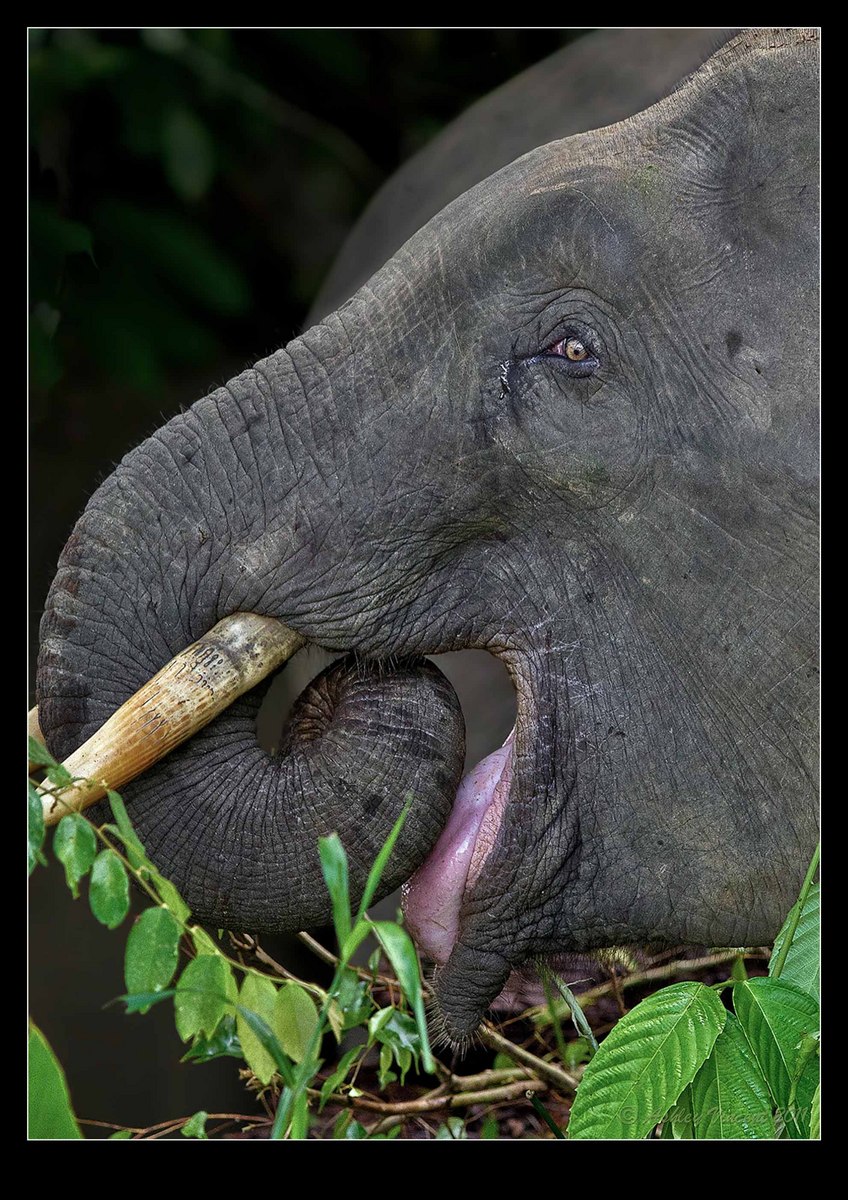
Pygmy's Lunch
by Ashley Vincent
Canon EOS 7D, EF 300mm f/2.8L IS USM, Aperture Priority @ f/3.5 (1/500 sec), 0 EV, ISO 1600, Handheld, JPEG from RAW, Cropped Vertical from Horizontal
Subject: Bornean Pygmy Elephant
Location: Kinabatangan River, Sabah, Borneo, Malaysia
Having spent an enjoyable time with the couple frolicking in the river, we noticed a little further along the bank there were a number more who were more focused on lunch!
Request For Help!!!
After all this time here I'm still using a backward way of resizing my images to meet posting requirements. Rather than explain the evidently far from optimum way I'm doing I've been doing it up 'til now, it's probably easiest if I explain exactly what I want to achieve in Photoshop (using CS5) then hopefully someone here can walk me through the steps I need to take in the simplest of terms; understanding written directions isn't exactly a strength for me ;^.
Once I've processed my images I save them as PSD files. While still in PS I'd like to add the same black border you see above (complete with thin white inner stroke), then add my copyright in one of the corners.
Having done that, I need to know how to make JPG files of 300kb and 500kb so I can post up each respective size accordingly.
Any help on this would be greatly appreciated, many thanks for your time and patience with me in advance :^)

Comments
16 commentsHere's one way you can resize. After saving your file the way you want it, duplicate the file, flattening the new file. Then you'll have two open. Flatten the first one also (remember that you've already saved it). Then do Image, Resize, and make the longest side of one of them 720 and repeat for the other one and make the longest side 1200. Then do Save As for each of them, save as JPG, and slide the slider to the left to get under 300 for the 720 and under 500 for the 1200. There are other ways, but that's the way one NPN member showed me, so that's what I do.
Firstly the image I think that it is a little too tight, but you have cracked the colour balance on this one.
Just to prove that there is more than one way to skin a cat.
I find the following to work best and I think easiest way to convert for web but this is from CS4
1) Open mode select 8 bit
2) File, Automate, fit image, select 700x700 for small size or 1200x1200 for large
3) Save for web and devices (you lose the Exif this way) but that is not needed here
4) In CS4 there is a "button" in top right hand corner, select this and select Optimize to file size then choose 300 small or 500 large
5) Save files I always put mine in a separate folder for NPN.
6) Finally reopen file and apply slight sharpening, I use smart sharpening 100% at 0.1
For resizing, here goes:
For 300 kb image:
1. Menu> Image > Image size
2. Uncheck Resample Image
3. Move up to Document Size and adjust the height or width (depending on which is the longest side of the image) and adjust to 720 points.
4. Now, check Resample Image and type 72.
5. Click OK
6. Menu > File > Save for Web & Devices. A dialog box opens up. Look at the upper right of the box.
7. Leave Preset on [Unnamed], in the area below that, click JPEG; Click Maximum below that.
8. In the extreme top upper right, you will notice a downward pointing small arrowhead and four horizontal stripes. Click on the stripes.
9. In the drop down menu that appears, click on Optimize to File Size. Another box opens up!
10. Fill in 300 next to the Desired File Size. Click OK. This drop down menu now disappears.
11. Click Save. Name the file and save it on your desktop, or wherever you want.
YOU ARE DONE!
For 500 Kb size:
1. Menu > Image > Image Size
2. Uncheck Resample Image.
3. Move up to Document Size and type out 1200 either in the width or height column, depending on which is the longest side.
4. Check Resample Image and type out 72.
Next, follow all the steps as above for 300 Kb. When you come to point 10, type out 500 in the Desired File Size.
YOU ARE DONE AGAIN!
CHEERS!
RE: Resizing, I do this more or less the same way as Ken describes.
BTW, thanks for asking questions re sizing and posting. I'm sure the answers will help a lot of us.
As to the crop, as you can see from the repost, there was an unfortunately placed vertically-running vine that I wanted to omit from the frame without the need of excessive cloning, hence the original crop I chose. I'm also not a fan of frames coming close to looking "boxy" and much prefer to keep the default proportions, which in this case means me losing the placement of the eye where I wanted it, as seen in the original crop.
With this new crop I did my best to darken that vine, which helps make it less of a distraction, but because I've sold myself so much on believing it is a distraction I can't help but notice it every time I look at the image, though it wouldn't surprise me to know that I'm the only one thinking this; thoughts and opinions on this once again much appreciated.
As to the resizing: In reverse order I began with Ajit's directions and, though I believe I followed them to the letter, for some reason I ended up with one file being 41kb and the other 94kb! Ajit, no doubt this is more due to something I did wrong rather than a result of you not explaining yourself properly; I actually found you directions real easy to follow and am baffled as to why I didn't end up with 300 and a 500KB files.
Ken: Unfortunately I was already lost on you first direction "Open mode select 8 bit" - while I'm sure your method also works with CS5, I couldn't seem to find anything in reference to "8 bit".
Barbara: Following your instructions has indeed given me close to the sizes I need; on a quality setting of 10 I scored 270kb, and I needed to drop down to 9 to get the larger file under the 500-mark, settling on 463kb. Seems I can't get exactly 300 or 500kb unless I spend an even greater amount of time going above and below pixel settings of, respectively, 720 and 1200, though I reckon these that I've now come up with are close enough.
The one thing nobody addressed was the two other elements I wish to add in Photoshop and, in turn, to my postings here: a border (with inner stroke) as well as my signature/copyright.
I tried to do this by sending the newly sized images back to Lightroom 3 (which is where I've always added my borders and signatures before), but once they're added this then makes the file size larger, so I'd have to start again, make further calculations and wasting even more time. Surely there's a better way of applying borders and signature while I'm still in PS?!?!
Still interested in help on this if anyone still has the patience, though once again very much appreciate all input thus far.
Ken Archer
My preference is still for the original crop by I can appreciate why some will prefer the second version. Thanks again one and all :^)
This image caught my eye right after you posted it but I didn't have time to respond until now. I REALLY like this shot, and prefer the original image as posted. I can see how some would be a little bothered by the closeness of the elephant's trunk to the left edge of the frame and the clipping of his tusk, but it just comes across as a very strong composition to me. The detail and texture in his eye, skin and whiskers are magnificent.
Great shot!
Thanks also for your well wishes for my trip ahead, all the very best to you and your family :^)
Techs look very good, perhaps a bit tight is all.
Well done