Decision, Take II
by Lon Overacker
Thank you so much for your comments, suggestions and for indicating a preference on my previous post. Rather than drag that one out and reposting, I decided to start over. In fact I went back to the RAW file for both and started over.
I appreciate the honest comments and reactions. I think the varied array of comments and preferences kinda indicate that either/both are not particularly strong images. But something about the starkness of the bare tree against the varied background and other elements there's got to be some potential, I'm thinking.
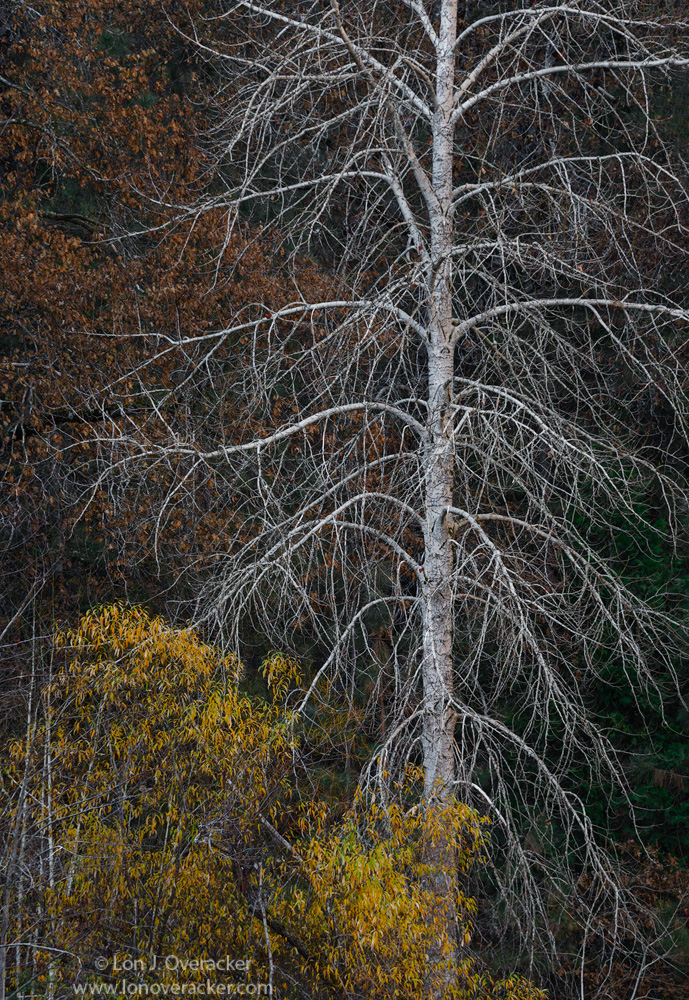
I've incorporated some advice and suggestions. Initially, the lean of the tree didn't bother me. But combined with some comments about balance and empty spaces, I think the rotation and resulting crop improved the 2nd rendition, so I'm posting first this time. The crop also reduced the bare verticals in the LL, so I think that's an improvement. And I think the pine greens in this version work well to balance the colors and space.
Also, I think it was Preston who mentioned brightening the bare tree itself. In looking back at what I posted I was finding the previous image to be flat. One of the reasons I reprocessed. In both versions here I boosted the bare tree to help separate from the bg a bit more.
Anyway, 'nough said. Not asking for a preference this time, but am wondering if either or both of these images are an improvement of the first try.
Thanks!

Comments
15 commentsThanks for any comments,
Lon
Ya know, one of the reasons I continue posting and commenting here, is that we don't have to love every image that's posted, and certainly don't expect everyone to love what we post. Honest opinions are all we're looking for.
One thing is certain that I think we all can agree upon, is that the feedback is valuable and more often than not, we are improving our work when we consider that feedback.
Thanks!
Nature seldom gives a perfect picture that fits in a square/rectangular format. My opinion is formed around what commands or dominates the scene; and here, the tree certainly does. All the rest of the scene supports that subject. Any imperfections are just lumps in a beautiful and tasty gravy.
Ed
Thanks,
Julie
Julia, thank you for your comments - and what a great question, thanks for asking! With out writing a novel, which I tend to do... I'll try and summarize a few things. As we all know, there are countless ways on accomplishing things in Photoshop. And my disclaimer? I have no idea if my methods are the best, most efficient or least destructive in PS. One thing I have learned though is that questions like this are what spur me to learn more about image processing. Having said that, I was able to increase the luminosity of the tree in a number of ways. But first, you are correct that it would be quite impossible to select the tree itself with all the tiny branches and color/tone variations to make specific adjustments to the tree. The MAIN key (at least for me) is to address adjustments to tones, color, luminosity, saturation, etc., rather than trying to select objects like a single tree. Keeping that in mind, here are a few things I did:
1. Starting in RAW, I used the Luminance in the HSL(Hue, Saturation, Luminance) adjustment. Knowing that the tree contains more blue/cyan and very light tones compared to the rest of the image, I boosted the luminance values of blue and cyan. Now these are global adjustments so the cyan was also picked up in the color/luminance of the pine trees. But that's ok. I also made Clarity and Vibrance adjustments as I do with most images.
2. Once in PS a great way to adjust luminosity without affecting color is by using a B&W layer (or a Hue/Sat layer can be used too.) The key though is to use these adjustment layers with the Blending mode set to Luminosity. Here I did the same thing as in RAW and increased the sliders for the blue and cyan adjustments. This actually turns out to be a pretty good sample image for this technique. The reason I say this because the yellows are concentrated in the willow, the reds mostly in the rusty oak leaves (as well as in the willow) and the greens of the pine/cedar - although I've let them go fairly dark. So I could also tweak the yellows/reds/greens to go a little darker, which by default make the white-ish (with blues and cyans) appear lighter. Hope that makes sense
3. The other round about way to make the tree stand out is to increase contrast - lights go lighter, darks, darker. Any number of ways to do this. One tip I picked up somewhere was the use of LAB mode (instead of RGB.) Now this is a topic for an entire tutorial and there are lots of them out there. I'll link to one. But I've been using a duplicated layer I process in LAB Color mode and add it to the layer stack using a variety of Blending modes and opacities. Mostly use Soft Light, Overlay, but also Normal works as does Color and Saturation blending modes. Here's one tutorial. Or just google "using LAB Mode in Photoshop" and you'll get tons - some quite advanced and complex. The link above is one of the more simple ones.
4. Another way to increase contrast or give an image a little punch is using a Curves or Levels Adj layer. The trick is to just add the Adjusment layer, but do not make any adjustments. Simply change the blending mode to Soft Light and change opacity to taste. Real simple. Got that one from Mr. Preston Birdwell! Thanks buddy!
Attaching a rough idea of what the layers look like.
Hope this helps. Feel free to contact me if you need more clarification.
Lon
thanks again everyone for your help!
Harry - Not sure if a typo, but I can't figure out what "BE" is?
Thanks all!
--P