Lizard Series – Part IV
by Ashley Vincent
Canon EOS 7D, EF 500mm f/4L IS USM, Aperture Priority @ f/5.6 (1/640 sec), +2/3 EV, ISO 800, Tripod, JPEG from RAW, Full Frame
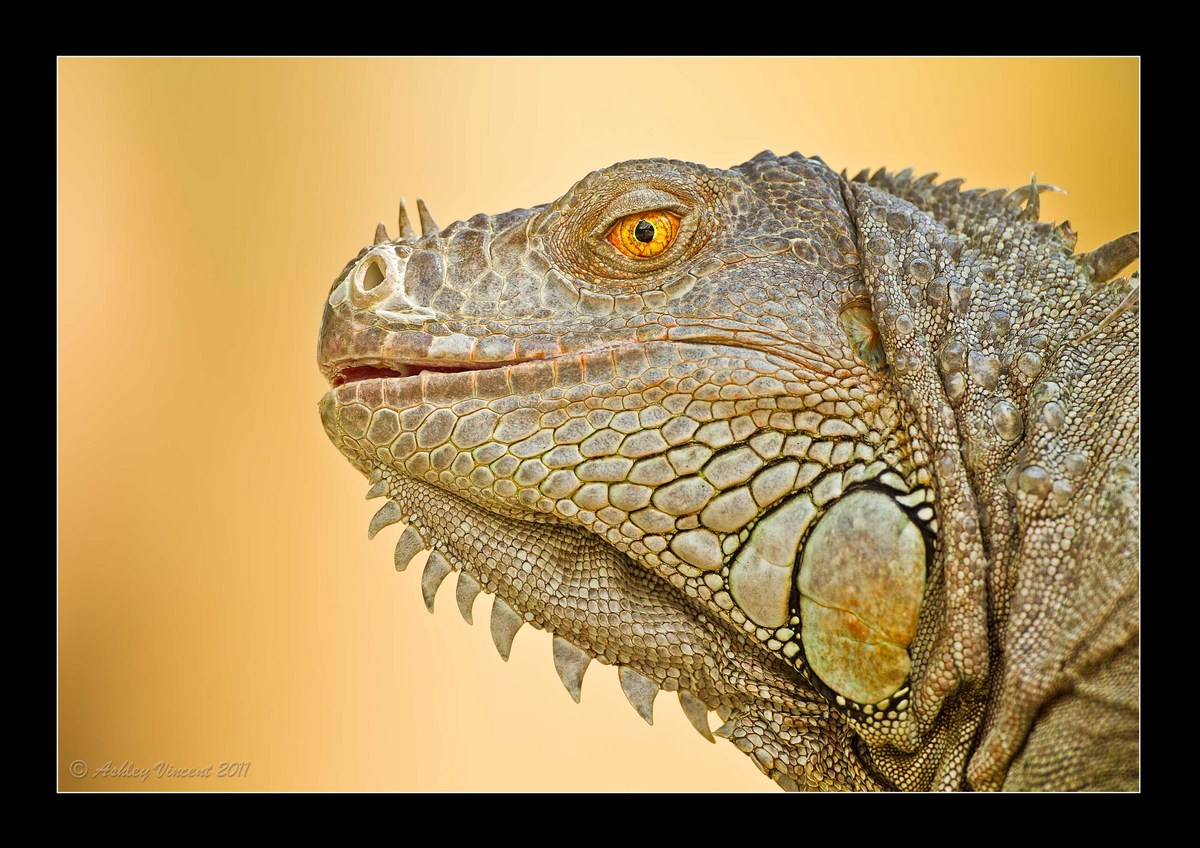
Subject: Green Iguana
Was in two minds as to whether to post this up as Part IV of my current 5-part series for the simple reason that no matter what I've tried I can't seem to get rid of that atrocious banding in the background. Then the thought struck me, “What better place to seek advice on this than right here?!?!” :^)
As some of you may recall, I had the same problem recently with the Long-Tailed Macaque (wet mother and young) where similar banding could been seen in the background. And although I was directed to a website where it explains what banding is and how it comes about, I couldn't understand how to avoid it happening again; some times it takes a while before the penny drops with me ;^)
There's absolutely no trace of banding in the 5.9 MB image of this I uploaded to my website and, if you take a look, you can see it's a lot less noticeable in the larger version I've posted here (@ 500kb) than this one above (@ 279kb), so I'm working on the assumption that this banding has come about during the compression process to the smaller JPEG files from the PSD.
Does anyone know if there's a simple (for me to understand!) fix to this?
BTW, I worked on the background with Topaz DeNoise 5 and used their “de-banding” at the same time, but still didn't seem to matter when it came to making these smaller JPEG files.
Tearing ourselves away from the somewhat distracting background – if such a thing is still possible ;^) - while the subject you see here is indeed a “Green” Iguana, apparently there are a number that have primary colouration of blue, black, lavender, pink and, as you see here, orange as well. The orange variety are usually found in Mexico … this one somehow ended up here in sunny Thailand at my local zoo!
Anyhow, hope you can enjoy this one for the wonderful subject it is, banded background notwithstanding ;^)

Comments
10 commentsI am NOT an expert on such things, but I immediately wondered if you used PhotoShop's "save for web" option. If so, I'd try going back to your full-size, resizing for here and saving just as a "regular" jpg with 10 or better quality if possible. I had a very similar issue a while back that was resolved by doing this. Just a thought, and I'm sure a few of the resident digital gurus will point you in the right direction.
BTW - I think you have just the right amount of space above the lizards head and in front of him...it just seems to work very naturally...but I do kind of wish to see the point of that larger spike coming off his neck. My guess is including the point of that one would cut off the next one, and so on, but perhaps if you showed just the first it might appease the psychological need for resolution there. Crazy small nit and very personal/subjective.
Really cool image.
The banding is a JPEG compression issue. You rarely (or never) see it in PSD or TIFF files (especially 16-bit ones), but JPEG's are 8 bit files that only allow for 256 shades of gray and can struggle with continuous tonal ranges like your background has here (to display a smooth tonal gradient like that requires a surprising number of tones). Add use of a high compression ratio (where the algorithm is "grouping" similar hues and/or tones together to save file space) and "presto" you get the bands. John is barking up the right tree with his comments about this being a consequence of using shortcuts like the "Save For Web" option - I'd avoid that if I was you. Simply (in Photoshop) take your original file, flatten if necessary, convert to 8-bit, change colour mode to sRGB if it isn't already there, and then "Save as JPEG" and select as little compression as necessary (select quality level of 9 or better if possible) to get the file size down to NPN guidelines. I've never had a problem with banding in any images I've re-sized and converted to JPEG for NPN purposes (i.e, file size requirements shouldn't force you to select a compression so high that it produces banding).
Very neat shot - agree with John's comments (all the positive ones). My only incredibly trivial nit is the small out-of-focus areas in the bottom right corner - because everything else in the image is so sharp this area tends to stand out (at least for me). This could probably be easily removed with cropping but if you feel taking this much off will destroy the integrity of your image, the "noticeability" of this soft focus zone could be reduced somewhat with aggressive selective sharpening in this region only (it wouldn't sharpen up as nicely as the rest of the image, but the difference in sharpness between it and the rest of the image wouldn't be as noticeable). As a matter of fact, I nabbed the larger version and experimented on it and use of selective strong sharpening DID make it much better.
Cheers...hope this helps...
Brad
PS: In temporarily nabbing your larger version I noticed the image was in ProPhoto RGB. This is a great mode to use for your master image files, but wouldn't recommend using it for images to be viewed on a computer monitor (emailed images or those displayed on a web site) - best to use sRGB. ProPhoto is currently is the widest colour gamut available (and Adobe RGB is a subset of it, as is sRGB) so maximizes the "routes" you can take an image, so good to continue to use it in your workflow if you keep "master" versions of your images (from which all versions for various uses are derived from). But ProPhoto RGB images often won't display well on many monitors and/or some OS's.
John & Brad: Thanks for taking the time to try and help me understand this better and for offering recommendations. First off, let me just say that I've never used the "save for web" option, not for reasons that you suggest that it's not the best way to go, but simply because the method I've used right from the beginning seems to have worked fine most of the time, so I've never ever clicked that option to see what results it might bring; kind of a "if it ain't broke why try to fix it?" philosophy.
I've spent the better part of the past half an hour trying to understand what you guys are explaining as a preferred alternative to the method I'm using to create 300-500kb JPEG files, and I'm sorry to say that for some reason I just can't seem to get my mind around this.
I started off working only with Lightroom 3 (LR3) and used this software for all my post processing, including building borders, adding a copyright signature, and then exporting the finished result as a JPEG from LR3's Print module to a folder on my hard drive. Several months later, when I finally started using PS CS5, I gradually found myself doing more and more of the post processing over in PS, but I couldn't figure out how add borders and signatures in PS and, already being happy with the ease of adding these in LR3, I simply saved the work I'd completed in PS as PSD files (which I found were just as good as TIFFs but smaller in size) and a copy of the new PSD file was automatically saved in LR3 allowing me to go straight into the Print module to add my preset border and choice of signature.
Once that's done I use the JPEG Quality slider to give me JPEG files that fit both 300 and 500kb in size. Seeing as this usually means I have to check the saved JPEG image several times on my hard drive to check each is respectively on or just under 300 or 500kb, I'm sure this isn't the optimum way of going about all this, but it's the only way I know how to do it right now and, 99% of the time, it works just fine.
In the Print module on LR3 my standard settings are File Resolution @ 240ppi, Colour Management set to Profile: sRGB and Rendering Intent: Perceptual. There is not option to choose 9 bit or 16 bit, although if I switched from "Print to JPEG File" to "Print to Printer" mode, there's a box one can check to select 16 bit.
I recently uploaded around 200 photos to my new SmugMug site, and only after did I find out from one of their support team that they always urge their account holders to upload images in sRGB, as the print labs they use don't or aren't able to work with ProPhoto RGB, so I spent another few hours deleting all those images, creating new copies all in sRGB and uploading those instead ;^.
Sorry for the rambling length of this response guys, and for not being able to fully understand your explanations in a way that offers me an alternative to saving my work as JPEGs in PS, which is further hampered by me not knowing how to create the borders and signatures I want to add to the images I present here. If I had the money I'd gladly pay for either of you to come out here and SHOW me how it's all done, which I'd no doubt understand and pick up very quickly, but I seem to be having a mental block while trying to comprehend the (no doubt easy for most other people to understand) instructions you both offer.
Thank you again though, and I will keep trying to figure this out.
You say: "Seeing as this usually means I have to check the saved JPEG image several times on my hard drive to check each is respectively on or just under 300 or 500kb"
I think I see part of the problem - in CS5 if you save a 16-bit PSD or TIFF file as a JPEG (layered or flat) the dialog box you encounter does NOT give you the file size of the resulting JPEG (which is why you have to repeatedly check if you have it down to the right size). That doesn't produce the banding, but it is an inefficient way to work (i.e, doing the conversion to JPEG multiple times).
Anyway...doesn't matter where you add borders or signature...here's how I'd recommend you working:
1. Get your image down to final resolution (pixel dimensions) as a PSD of TIFF file - doesn't matter if this is in CS5 or LR.
2. Open in CS5.
3. Convert to sRGB if it isn't already in that colour mode. Do this via the "Convert to Profile" command (in Edit menu) NOT "Assign Profile"
4. Convert image to 8 bit if it isn't already in 8-bit mode (Image>Mode>8 bits)
5. NOW use "Save As" and select JPEG. You'll be presented with a dialog box that allows you to specify the JPEG quality (and compression) AND that gives you the file size of the output file. Keep the file as close to the NPN limit as possible to minimize the probability of banding. Note that with some images that are either VERY busy or those with large areas of continuously changing tone it may not be possible to produce a JPEG that looks great (including avoiding banding) that conforms to NPN standards.
While LR3 is a very good program, it does do some "black-boxifying" of things (like keeping the user AWAY from setting resolution directly and instead jumping into a Print module) in an effort to 'simplify" things. I think this can keep users from learning some of the critical basics needed to maximize image quality in a digital workflow - things like really understanding the nuances of resolution, colour modes, file types and compression algorithms, etc. I'd personally recommend either finding a good Photoshop course (basic level) or sitting down with a good CS5 instructional book. Considerably cheaper than flying someone over to Thailand!!
Cheers...
Brad
PS: If you have more questions about this, let's go offline and discuss by email...