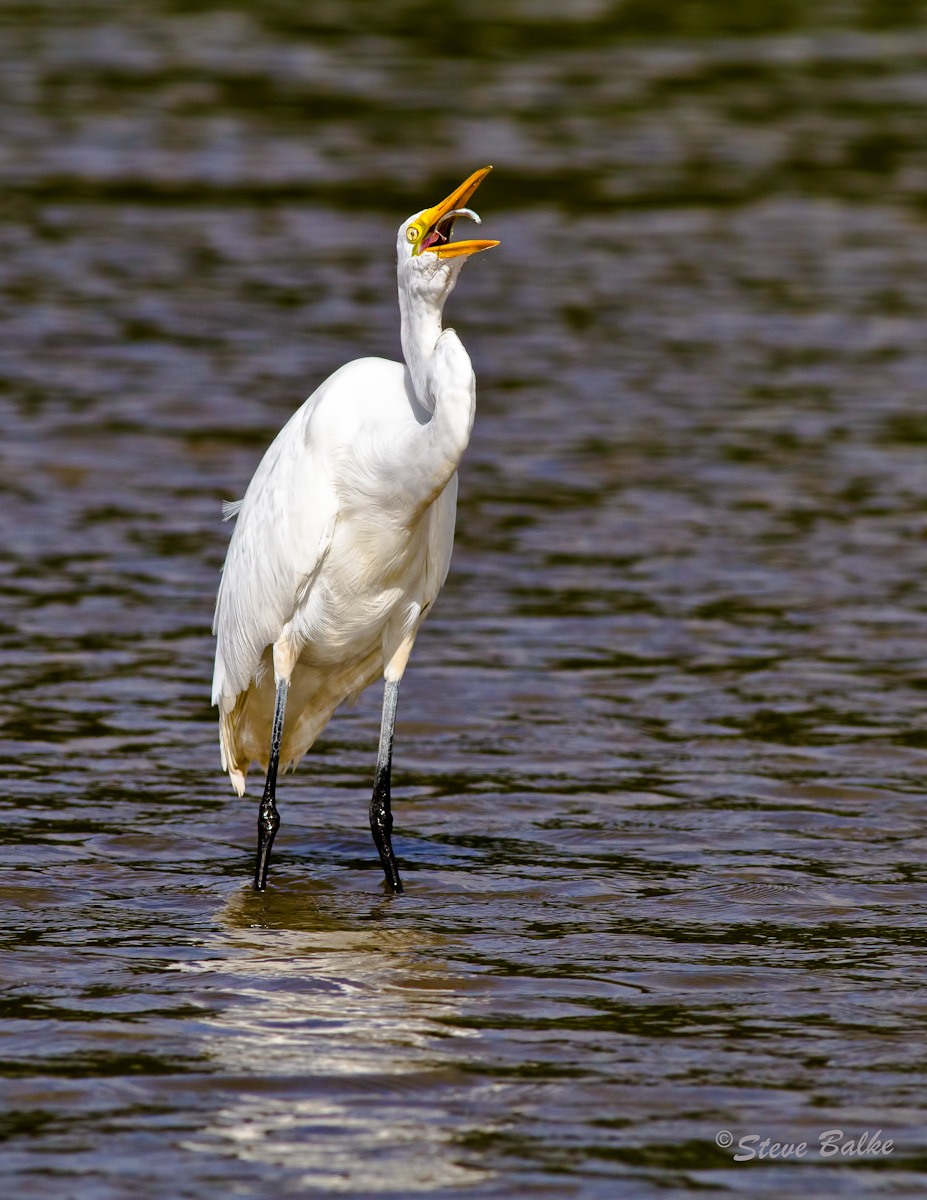
Great Egret #2
by Steve Balke
Great Egret (Ardea alba)
This is another shot of the same egret in the previous image.
I like this image because of the action. However, I don't think the bird looks particularly attractive from this angle. Maybe this particular bird doesn't exercise enough or something!
My main concern here is that some whites may be blown. However, Lightroom indicates no problem.
All comments welcome.
EOS 7D, 400 mm f/5.6: ISO 400, 1/2000 s, f/8.0,,-1/3 EV, 8.4 MP after cropping, NR, some exposure adjustment, slight CCW rotation, sharpening.

Comments
8 commentsSometimes, images just don't come together the way we hoped....
Don't know a thing about Lightroom, but I agree that the whites seem blown in several places here. Also don't know much about the 7D, but I'm pretty sure it has a "blown highlight" blinking alert to let you know to alter exposure so you don't have to try to pick up blown highlights in post-processing, which is very difficult.
Sandy r
When it comes to checking for blown whites (or blocked up blacks), there are a couple stages where you can do this. In Adobe Camera Raw, if you click on the boxes with triangles insides them in the upper left and right corners of the histogram, your blown whites will show up bright red and blocked up shadows will show up blue. Once you click on these boxes, the setting is sticky and becomes your default until you unclick them. This is an easy way to see if you've got any problems. As you tinker with the exposure and recovery sliders, you'll see the red areas disappear.
In Photoshop, the way I check to see if I've got any blown whites (or single color channels) is with Levels. When you click for a levels layer, use click on the sliders on either side (left for shadows, right for highlights) while holding down the Option key (Control on a PC?). As you slide this while holding the option key, the image will be black, and blown out pixels will show up in the color channel that's blown (or red if its totally blown out). For example, in this image, it shows you've got a hot spot at 255 on the neck, and a sizeable portion of the back at 254/253, where there will not be a lot of detail. It also shows a need (which I think is visible in the image) to desaturate the orange bill a bit.
If this were mine I'd use ACR to try to fix these things, using a soft adjustment brush to reduce the exposure on the brightest whites a half stop or so, then use the color adjustment tab (4th one over), select saturation, and desaturate the oranges by 5-10 points, then reopen in Photoshop and see how it looks in Levels.
Looks like you had plenty of light, so you might've shot faster?
Some slightly different settings might have helped keep those whites in check.
Still a great shot as is
Good job of catching the flip of the catch which is a trademark of the Great Egret. White birds can be difficult to properly expose. You can have an image where the whites are not blown but bright enough to show no detail. For that reason I always slightly underexpose white birds. With white birds I never shoot for the conventional right side of the histogram. Some may say by underexposing you will introduce noise but in white birds that rule may not be totally accurate.
Ronnie
Love the action and how you caught the prey in mid air. You have gotten some good advice on the whites being/looking over exposed. As Ronnie mentioned with whites you can raise the exposure without introducing much noise.
Blown highlights encompass three topics: prevention, detection and repair. Your comments addressed all three. Here's what I’ve learned from all them:
Prevention: As Sandy mentioned, the 7D does have a “blown highlight” blinking alert. I do use it as a conservative indicator since I shoot raw and it is based upon the jpg image. However, this time the combination of variable lighting on a partially cloudy day and a single fast bird action torpedoed my efforts.
Preserving detail in the white areas is the challenge. Ronnie pointed out that underexposing white birds is against the conventional “expose to the right side of the histogram” but works well for such subjects.
Detection: Blown highlights are objectionable for three main reasons: detail is not captured; when all colors are blown the white area is a distraction and when one color is blown, saturation of that color results. Detection of blown highlights rely on determining whether an area has R,G or B values reaching 255. Actually, even values above 245 are to be avoided.
Detection Using Adobe Camera Raw: Brian describes how to trigger the color indicators of blown highlights on a raw image in ACR. The limitations are that 255 is the fixed value for the indicator color and ACR only works with raw files. [Just discovered that we can open other image formats in ACR: just select "camera raw" in the format box of the open command in PS. So, then we can apply the ACR detection to formats other than raw format.]
Detection Using Lightroom: In LR the color indicator for blown highlights can be triggered by selecting “View” and then “Show Clipping” in the Develop Module. I normally use this one. It’s essentially the same as the ACR method except that it can be applied to any image. Since post processing affects the presence of blown highlights I’ve now learned to apply this (and any other method) to the actual jpg image being posted.
Detection Using Levels in Photoshop: Brian described how a Levels adjustment layer could be used to reveal blown highlights and color saturation. The outstanding advantages of this method are: (i) it is applicable to any image (raw or not); (ii) it provides indicators for each color on the image; (iii) it provides the minimum value of the RGB values corresponding to the indicators (iv) colors can be individually selected for this analysis or grouped. I found it easier to appreciate individual color saturation by using HSB values instead of RGB values and for that reason turned to the Info Palette.
Detection Using the Info Palette in Photoshop: The Info Palette can be set up with the color sampler tool so as to show the average RGB value (and HSB or CMYK values) of a 3x3 square of pixels (so we are not fooled by the value of a single pixel). Running the mouse over the bill of the egret showed 100% saturation (I used the S value in HSB as an indicator).
Repair: Brian mentioned one method using PS. I like to use Viveza 2 as a PS plug-in to avoid the selection process. Lowering the exposure and desaturating is relatively easy. Recovering detail is the problem. In this case, after many tries, I don’t think that the detail is there to recover.
However, this bird kept me entertained for quite some time. I have other egret images to post. I hope that you all don’t get tired of seeing this egret showing off!
Thank you all again for taking the time to make such fine comments.