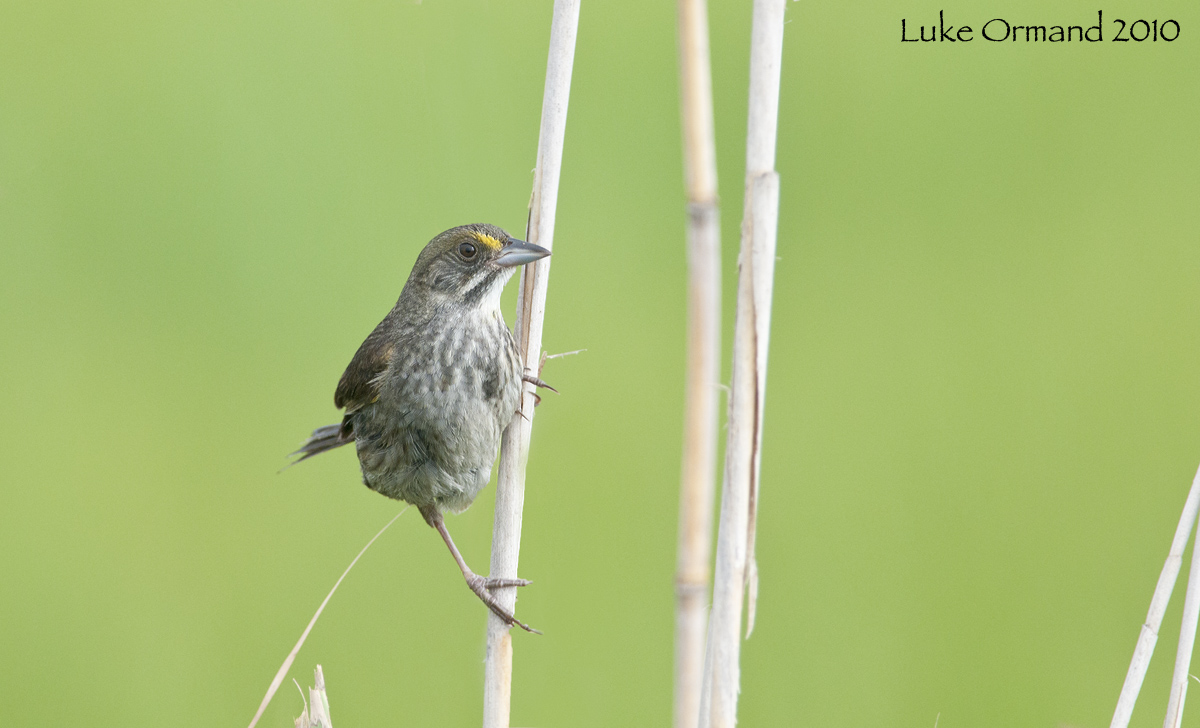
Seaside Sparrow II
by Luke Ormand
After a computer crash I'm trying to get organized again... had all the photos backed up which makes things easy, but now I've upgraded to a 27" iMac (previously on a PC) and CS5... I'm a little out of my element so please bear with me!
Cloned out an OOF reed running through the head/body of the bird - attempted to use content aware but that was a real mess... I guess it's not a catchall! Instead relied on the clone stamp which was effective.
Nikon D300s 300 f4 + 1.7X TC HH
f/8
1/800s
ISO 1000
Cropped to 80%, sharpened, no noise reduction.
- Luke

Comments
15 commentsI like the details and the saturation of the colors. The composition looks good also. Good head turn and eye contact.
I would maybe add a bit more contrast, but not much. Also the piece of grass pointing to the birds rear is a bit distracting.
Nicely done.
Bummer about the computer crash, but glad you had everything backed up.
Sorry to hear about your computer crash. Hope you like your new system.
I like your comp on this a lot.
Peter
Not sure why they would look different... the smaller version is a straightforward re-size of the larger version which is how I always process my photos for NPN.
Peter,
"Curious, did you use the spot healing tool with content aware on the first attempt?" huh?
I didn't even know how to access content aware so I watched a quick clip on youtube that probably didn't cover the bases I needed to properly use it. Any advice would be welcomed... not that it took a long time to do it with the clone stamp and healing brush, but obviously content aware is something worth knowing how to use.
As Dennis points out the small and large versions look very different. I too prefer the darker tones of the smaller version.
cheers
Rob
The computer stuff is not my strength either but I have successfully done the following:
For lines (like blades of grass) that you want removed, select the "spot healing brush tool" on my screen it is the 7th one down from the top on the left hand side. It is in the same group of tools as the red eye tool and healing brush tool, just click and hold the button down until it shows the whole group and then select the spot healing brush.
After you have selected it you will see some buttons across the top of the page. Make sure "content aware" is checked. Then size the brush by using the [ or ] key next to the P on the keyboard so that the circle is just bigger than the line you want to remove. Start at one end and hold the clicker down as you slide the circle over the unwanted line. I do a couple inches at a time.
Sorry if these instructions are way too simplistic but that is how I need people to tell me what to do or I get lost.
See if it works for you.
Peter
Always nice to see this species posted and I love how well the yellow supraloral shows in your image. Very nice eye contact too
I like the pose of the bird and the clean background makes this a winner.